Migrating your emails from Windows Live Mail to Outlook can feel overwhelming, especially with the discontinuation of Windows Live Mail and the growing need for a secure, modern email platform. The Live Mail to Outlook Converter software, available exclusively at livemailtooutlook.com, offers a seamless, user-friendly solution for transferring all your emails, attachments, and folders to Microsoft Outlook. This comprehensive guide will walk you through every step of the process, ensuring your data remains intact and your transition is smooth.
Whether you are an individual user, a business, or an IT administrator, this guide is designed to help you understand the features, requirements, and best practices for using the Live Mail to Outlook Converter. We will also address common questions, troubleshooting tips, and provide actionable advice to maximize your migration success.
Why Migrate from Windows Live Mail to Outlook?
 Windows Live Mail was once a popular choice for managing emails, but Microsoft discontinued support for it in 2017. As a result, users face increasing risks, including security vulnerabilities, compatibility issues, and lack of updates. Outlook, on the other hand, is a robust, actively supported email client that offers advanced features, integration with Microsoft 365, and enhanced security.
Migrating to Outlook ensures:
- Continued access to your email history and attachments
- Improved security and compliance
- Better integration with modern productivity tools
- Ongoing support and updates from Microsoft
The Live Mail to Outlook Converter is purpose-built to make this transition as easy and reliable as possible.
Key Features of Live Mail to Outlook Converter
The Live Mail to Outlook Converter stands out for its simplicity, reliability, and comprehensive feature set. Here are the core benefits you can expect:
- Automatic Detection of Live Mail Data. The software locates your Windows Live Mail storage folders automatically, saving you time and reducing errors.
- Bulk Email Conversion. Convert thousands of emails and attachments in one go, preserving folder hierarchy and metadata.
- Direct Export to Outlook or PST. Choose to import emails directly into your Outlook profile or save them as a standalone PST file for later use.
- Preserves Attachments and Formatting. All email properties, including attachments, sender/recipient details, and formatting, are retained.
- User-Friendly Interface. Designed for both technical and non-technical users, with clear prompts and minimal steps.
- Compatibility. Supports all major versions of Outlook (including 2021, 2019, 2016, 2013, 2010, and earlier) and Windows (Windows 11, 10, 8.1, 8, 7).
- Flexible Output Options. Split large PST files, filter emails by date, and preview emails before conversion.
- Data Integrity and Security. Ensures no data loss, duplication, or corruption during migration.
- Free Trial. Try before you buy, with a free trial version.
These features make the Live Mail to Outlook Converter a trusted choice for anyone seeking a reliable migration path.
System Requirements and Compatibility
Before starting your migration, ensure your system meets the following requirements:
| Requirement | Minimum Specification | Recommended Specification |
|---|---|---|
| Operating System | Windows 7/8/8.1/10/11 (32/64-bit) | Windows 10/11 (64-bit) |
| Processor | Intel® Core™2 Duo E4600 2.40GHz | Intel® Core™ i3 or higher |
| RAM | 4 GB | 8 GB or more |
| Hard Disk Space | 512 MB | 1 GB or more |
| Outlook Version | 2003/2007/2010/2013/2016/2019/2021 | Latest Outlook version |
| Display | 1024 x 768 pixels | Higher resolution recommended |
Our Live Mail to Outlook Converter software does not require Windows Live Mail to be installed on the same computer as Outlook. You can migrate data from an old PC to a new one by copying the Live Mail data folder.
Step-by-Step Guide: How to Use Live Mail to Outlook Converter
Migrating your emails is straightforward with the Live Mail to Outlook Converter. Follow these steps for a smooth transition:
1. Download and Install the Live Mail Converter Software
- Download the latest version of the Live Mail to Outlook Converter.
- Run the installer and follow the on-screen instructions to complete the installation.
Tip: Close both Windows Live Mail and Outlook before starting the conversion to avoid file access conflicts.
2. Launch the Converter
- Open the Live Mail to Outlook Converter from your desktop or Start menu.
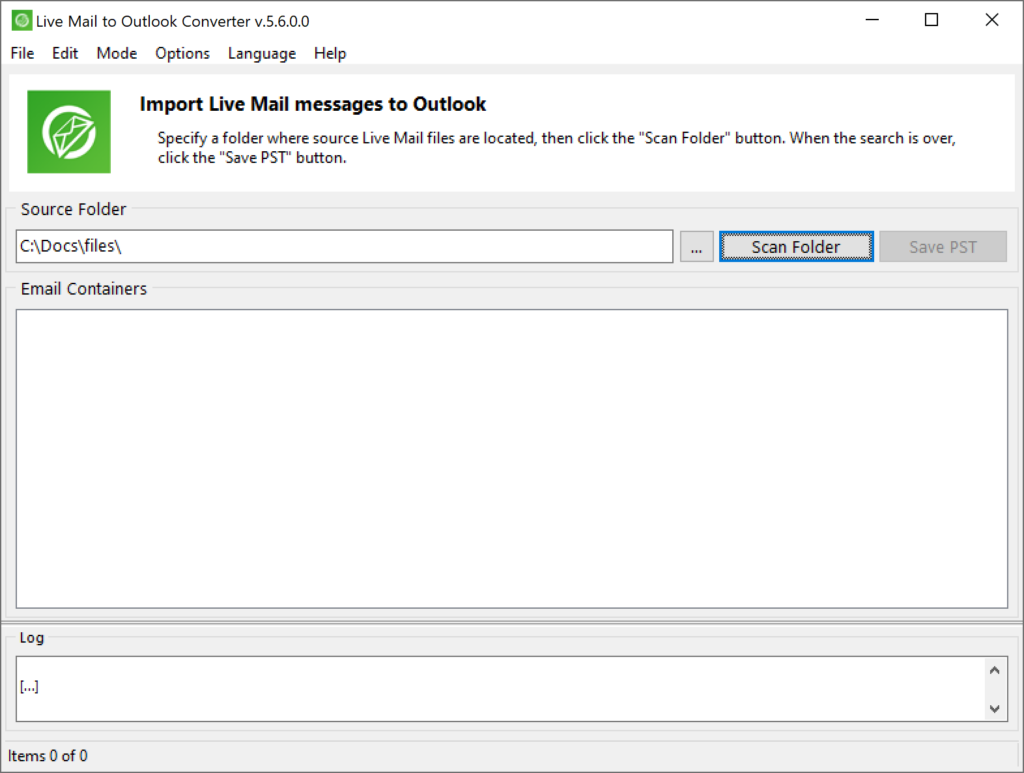
- The software will attempt to automatically detect the location of your Windows Live Mail data. If it does not, you can manually browse to the folder (typically located at
C:\Users\[YourUsername]\AppData\Local\Microsoft\Windows Live Mail).
3. Scan for Emails and Folders
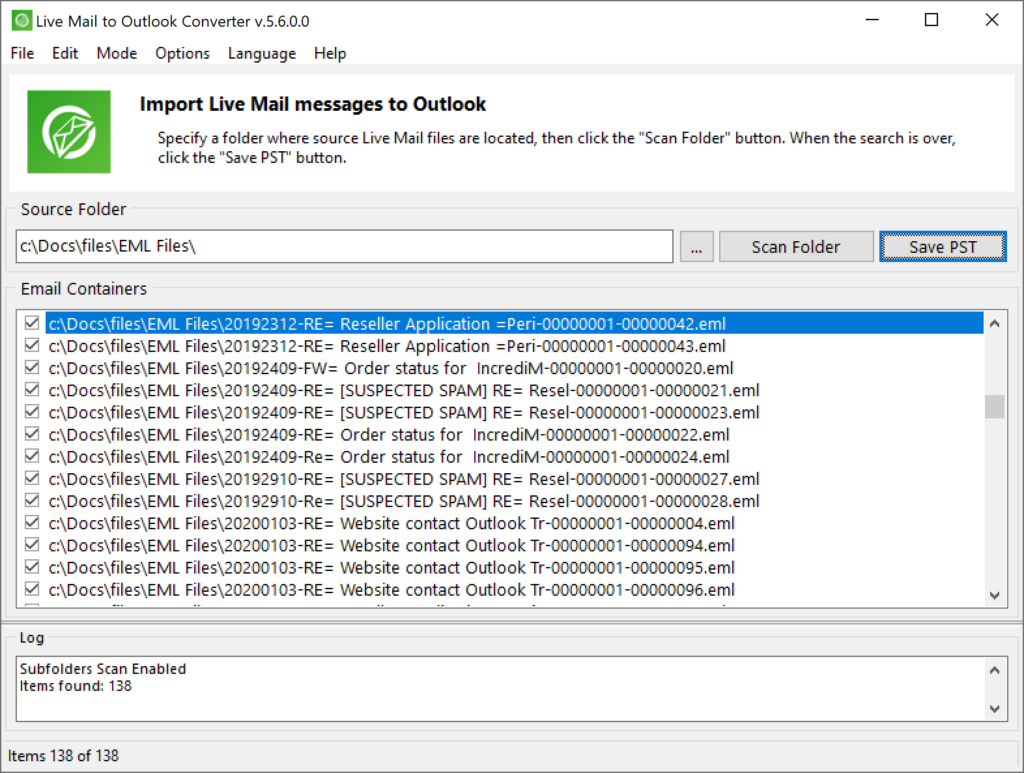
- Click the Scan Folder button. The software will list all available email folders and messages.
- Review the folder structure in the preview panel to ensure all desired emails are included.
4. Choose Export Mode
At this stage, you’ll decide how the converted emails should be saved:
- Save to PST file (recommended): This is the default and most reliable option. The software creates a standalone PST file that can be opened in Outlook on the same or another computer.
- Import directly into Outlook: This option attempts to deliver emails straight into your current Outlook profile.
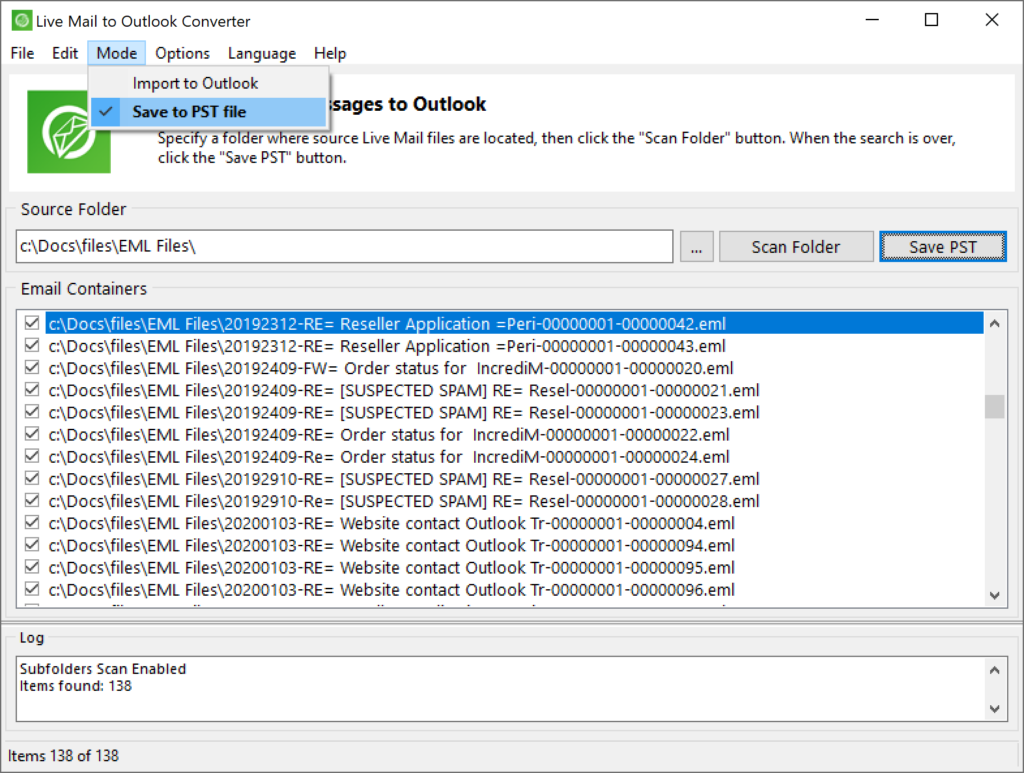
Important: We strongly recommend using the default Save to PST file mode. Direct import may only work if you’re using a POP3 account or if your email server allows direct access to the Outlook data store. In many cases, this method is blocked or unreliable.
After conversion, the software will try to open the resulting PST file in Outlook automatically. If Outlook is busy or the file doesn’t open, you can open it manually by going to File > Open & Export > Open Outlook Data File in Outlook.
5. Apply Filters (Optional)
- Use the Date Filter to convert only emails within a specific date range.
- Exclude attachments if you only need the email text.
- Remove duplicate emails to keep your mailbox clean.
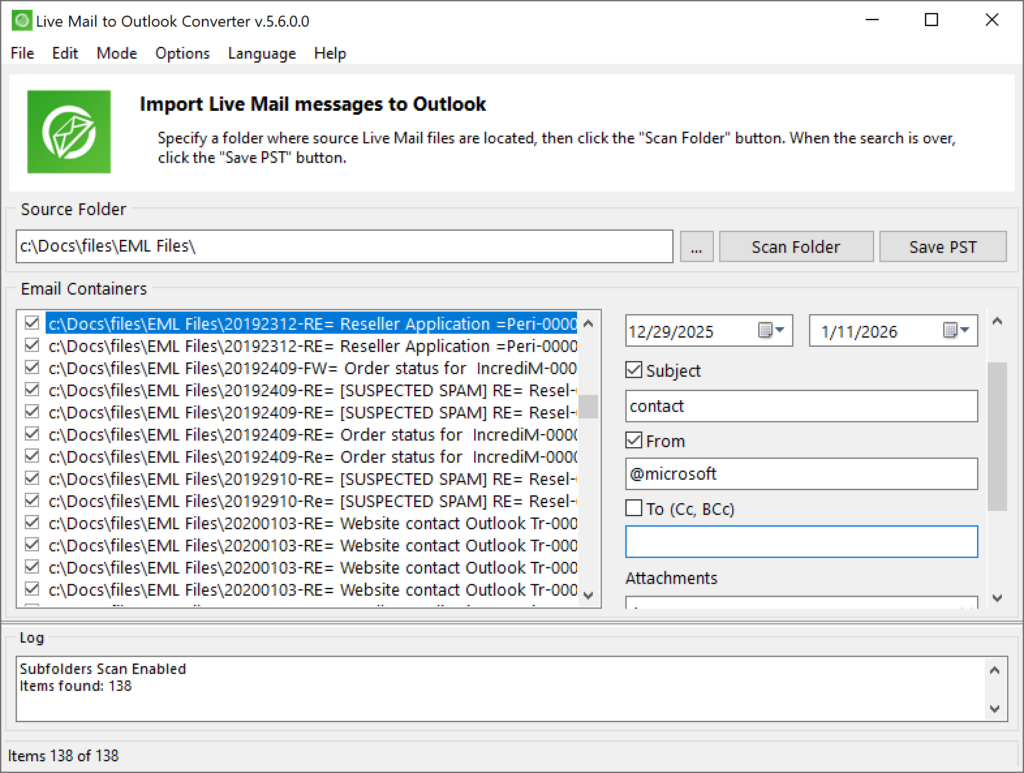
- – message filtering available via the Options menu
6. Start the Conversion
- Click the Convert or Save PST button.
- Choose the destination folder for your PST file or select the Outlook profile for direct import.
- The software will begin the conversion process. Progress is displayed in real time.
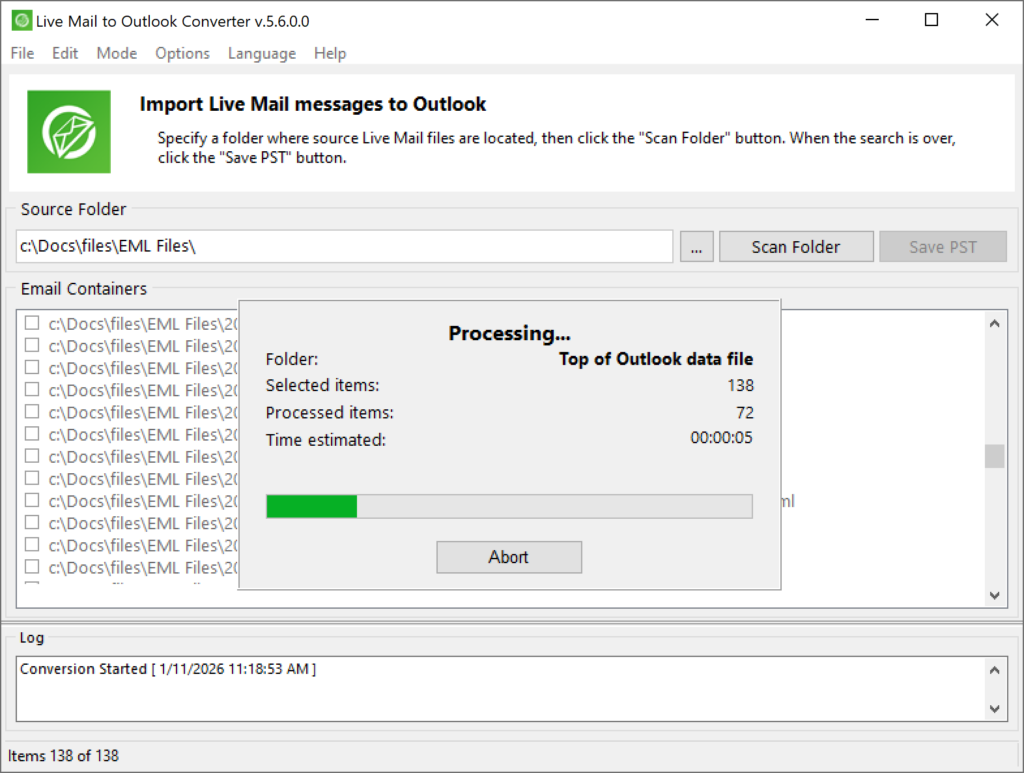
7. Access Your Emails in Outlook
- If you exported to a PST file, open Outlook and go to File > Open & Export > Open Outlook Data File. Browse to your new PST file and open it.
- If you imported directly, your emails will appear in the designated Outlook folder.
Congratulations! Your Windows Live Mail emails, attachments, and folder structure are now available in Outlook.
What does Windows Live Mail to Outlook Converter transfer to Outlook?
So, here is what exactly Windows Live Mail to Outlook Converter can transfer from Live Mail to Outlook:
- Folder structure
- Email text
- Email text formatting and styles
- Images and objects embedded to the email text
- Email headers (Sender, From, To, CC, BCC, Priority etc.)
- Email references (that is links to other messages)
- Attachments
- Links
- Encoding (automatically fixed if necessary)
Ready to Migrate?
Ready to move your emails from Windows Live Mail to Outlook?
Download a trusted Windows Live Mail to Outlook converter tool today and start your seamless migration!
If you need help, check out our detailed usage instructions or contact our support team for personalized assistance.
Troubleshooting and Support
Even with a user-friendly tool, you may encounter occasional issues. Here are solutions to common problems:
1. Software Not Detecting Live Mail Data
-
- Ensure you are browsing to the correct folder. The default location is usually
C:\Users\[YourUsername]\AppData\Local\Microsoft\Windows Live Mail. - Make hidden files and folders visible in Windows Explorer.
- Ensure you are browsing to the correct folder. The default location is usually
2. Conversion Interrupted or Incomplete
-
- Close all email clients before starting the conversion.
- Check for antivirus or security software that may block file access. Temporarily disable if necessary.
3. Outlook Not Displaying Imported Emails
-
- Make sure you have opened the correct PST file in Outlook.
- Make sure that you have expanded the whole folders tree of the opened PST file.
4. Large Mailboxes or Performance Issues
-
- Use the Split PST option to break large mailboxes into smaller, manageable files.
- Ensure your system meets the recommended hardware requirements.
5. Licensing and Activation
-
- If you encounter issues with license activation, contact support with your order details.
Typical mistakes that can lead to unsuccessful conversion
Sometimes, the conversion does not go as smoothly as you expected. Why? Let’s take a look at several most common reasons that prevent Windows Live Mail to Outlook Converter from correctly converting your emails.
Error: there is no default user profile in Outlook
The program cannot export emails directly to your Outlook profile if there is no profile in Outlook. This is often the case when you have just installed Outlook and instantly decided to migrate from Windows Live Mail to Outlook 2007, 2010, 2013, 2016, 2019 or 2021.
Error: 32-bit/64-bit format mismatch
Apparently, you cannot export messages to 64-bit Outlook using the 32-bit version of the Windows Live Mail Converter. The opposite is also true. Run the corresponding version of the converter instead.
Error: Outlook online is not supported
As stated above, you cannot import emails directly into online Outlook profiles, be that the latest Outlook 365, or older Outlook 2003, 2007, 2010, 2013 versions that work via Exchange Server or IMAP.
Error: Outlook profile is corrupted
The reasons for inability to import emails from Windows Live Mail application to Outlook can be a damaged PST file or corrupted Outlook profile. We recommend repair the profile using some specialized tools, or import emails to a brand new PST file you created from scratch.
Error: Folder names seem truncated
The reason is the way Windows Live Mail stores mailbox files of the Live Mail account. It truncates filenames to 15 characters, so after the converter transfers them to Outlook, they are truncated as well. Please rename folders manually if needed.
For further assistance, consult the Support Center or reach out via email.
Frequently Asked Questions (FAQ)
How do I convert Windows Live Mail to Outlook using the converter?
Answer:
Download and install the Live Mail to Outlook Converter. Launch the software, select your Windows Live Mail data folder, scan for emails, choose your export option (PST or direct import), and start the conversion. Detailed steps are provided above. You may also read about Outlook email import here: Microsoft Support: Bulk Import .eml Files in Outlook
Can I migrate emails from an old computer to a new one?
Answer:
Yes. Copy your Windows Live Mail data folder from the old computer to the new one, then use the converter to migrate emails into Outlook on the new system.
Will attachments and folder structure be preserved?
Answer:
Absolutely. The converter retains all attachments, metadata, and the original folder hierarchy, ensuring your mailbox remains organized.
Is there a risk of data loss or duplication?
Answer:
The software is designed to prevent data loss and offers options to remove duplicate emails during conversion.
What if I only want to migrate emails from a specific date range?
Answer:
Use the built-in Date Filter to select emails within your desired timeframe.
Can I try the software before purchasing?
Answer:
Yes. A free trial version is available, allowing you to convert a limited number of emails per folder. This helps you evaluate the software before committing.
Is technical support available?
Answer:
Yes. Dedicated support is available via the Support Center and email.
What are the licensing terms?
Answer:
Licenses are available for home, business, and enterprise use. Review the EULA during installation for full details.
How do I ensure my data remains private?
Answer:
The software processes data locally on your computer and does not transmit your emails externally. Review the privacy policy for more information.
How to convert Windows Live Mail Contacts to Outlook?
Answer:
With our smart vCard to PST converter makes moving your Lie Mail contacts to Outlook seamless and stress-free. Discover how in our step-by-step guide! You may also want to know How to Export Contacts from People App in Windows 10
Is there a manual methods to convert Live Mail messages to Outlook?
Answer:
Manual methods are best for simple migrations, below please find some of them:
Prerequisites
-
- Both Windows Live Mail and Microsoft Outlook installed on the same computer.
- Backup your data before starting.
Method 1: Export via Microsoft Exchange
A. Export Emails from Windows Live Mail
-
- Open Windows Live Mail.
- Click the File tab, then select Export email > Email messages.
- Choose Microsoft Exchange as the export format and click Next.
- Confirm the prompt by clicking OK.
- Select the folders you want to export (or choose All folders) and click OK.
- Wait for the export process to complete, then click Finish.
B. Import Data into Outlook
-
- Open Microsoft Outlook.
- Go to File > Open & Export > Import/Export.
- Select Import from another program or file and click Next.
- Choose Outlook Data File (.pst) and click Next.
- Browse to the exported file location, select it, and choose how to handle duplicates.
- Select the destination folder and click Finish.
Note: This method may not preserve folder hierarchy or all metadata. Large mailboxes can take significant time to export and import.
Method 2: Drag and Drop EML Files
-
- Locate your Windows Live Mail storage folder (usually at
C:\Users\[Username]\AppData\Local\Microsoft\Windows Live Mail). - Copy the EML files you want to migrate.
- Open Outlook and create a new folder.
- Drag and drop the EML files into the Outlook folder.
- Locate your Windows Live Mail storage folder (usually at
Limitations: Attachments and metadata may not transfer correctly. Bulk imports can be tedious, and folder structures are not maintained.
Method 3: Using IMAP (Gmail as an Intermediary)
-
- Enable IMAP in your Gmail account.
- Add your Gmail account to Windows Live Mail.
- Copy emails from WLM to the Gmail account (IMAP folder).
- Add the same Gmail account to Outlook.
- Move emails from Gmail to your Outlook folders.
Note: This method is useful for transferring emails between computers or platforms but can be slow for large mailboxes.
Automated tools simplify the migration process, support bulk imports, and preserve folder hierarchy, attachments, and metadata. We strongly recommend using our converter instead of converting your messages manually.
Conclusion
Migrating from Windows Live Mail to Outlook is a critical step for anyone seeking a modern, secure, and fully supported email experience. The Live Mail to Outlook Converter, available at livemailtooutlook.com, is purpose-built to make this process effortless. With its intuitive interface, robust feature set, and commitment to data integrity, you can trust this tool to safeguard your emails and attachments during migration.
By following the step-by-step instructions in this guide, you’ll ensure a smooth transition, whether you’re moving a few messages or an entire mailbox. Take advantage of the free trial, explore the advanced features, and reach out for support if needed. Your emails are valuable, migrate them with confidence using the Live Mail to Outlook Converter.
Data Privacy, EULA, and Legal Considerations
When using the Live Mail to Outlook Converter, your data privacy and legal rights are protected by a clear End-User License Agreement (EULA) and privacy policy:
- EULA: Outlines your rights to use the software, restrictions on redistribution, and limitations of liability. Acceptance is required during installation.
- Privacy Policy: Details how your data is handled during the conversion process. The software does not transmit your emails or personal information to external servers.
- Compliance: The software is compliant with major data protection regulations, including GDPR and CCPA, ensuring your information remains secure.
Always review the EULA and privacy policy before installation for full transparency.